
Connect, Use, and Disconnect Zoom in Calday
1. Connect Zoom
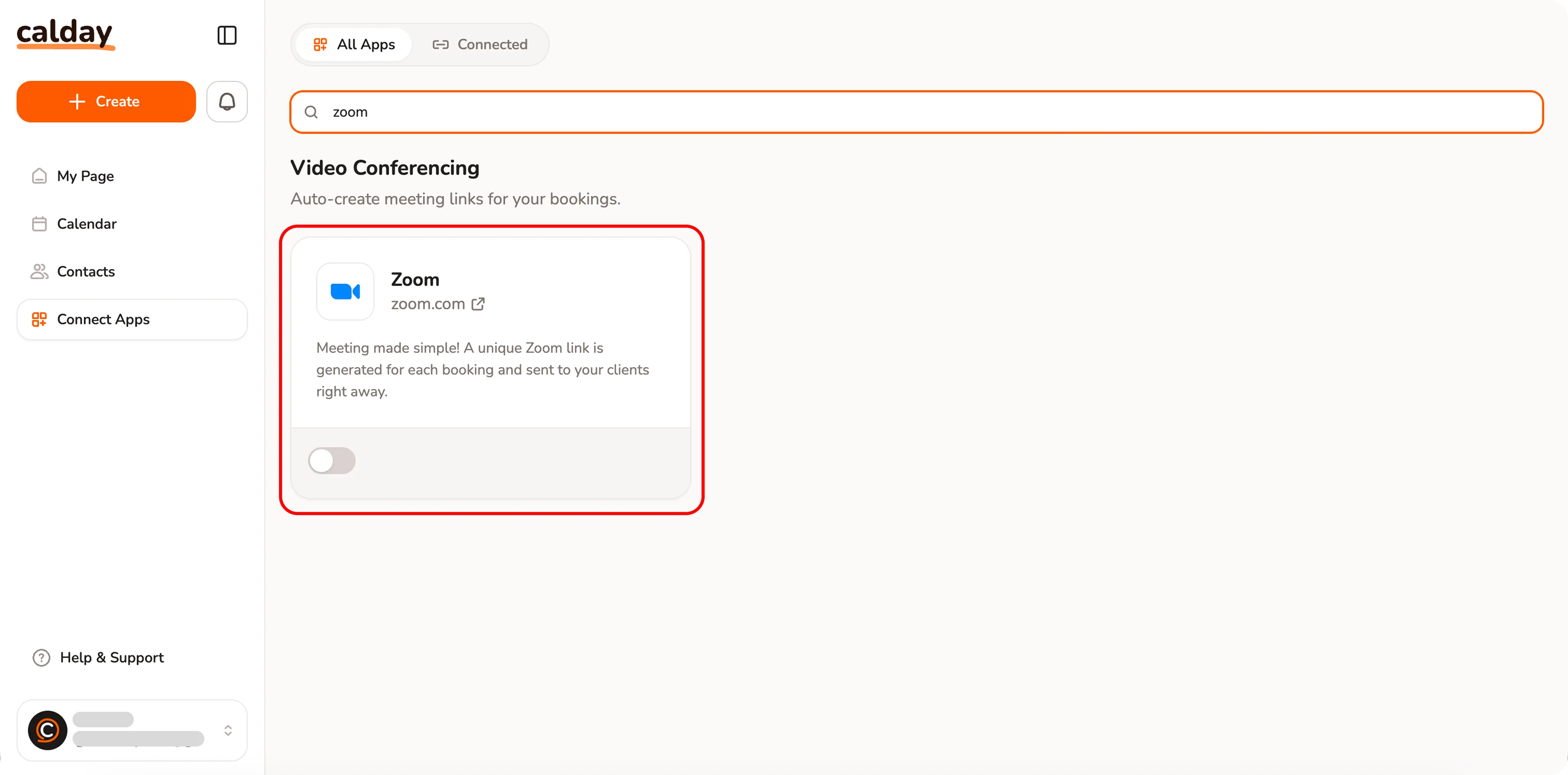
Find Zoom in "Connect Apps" section
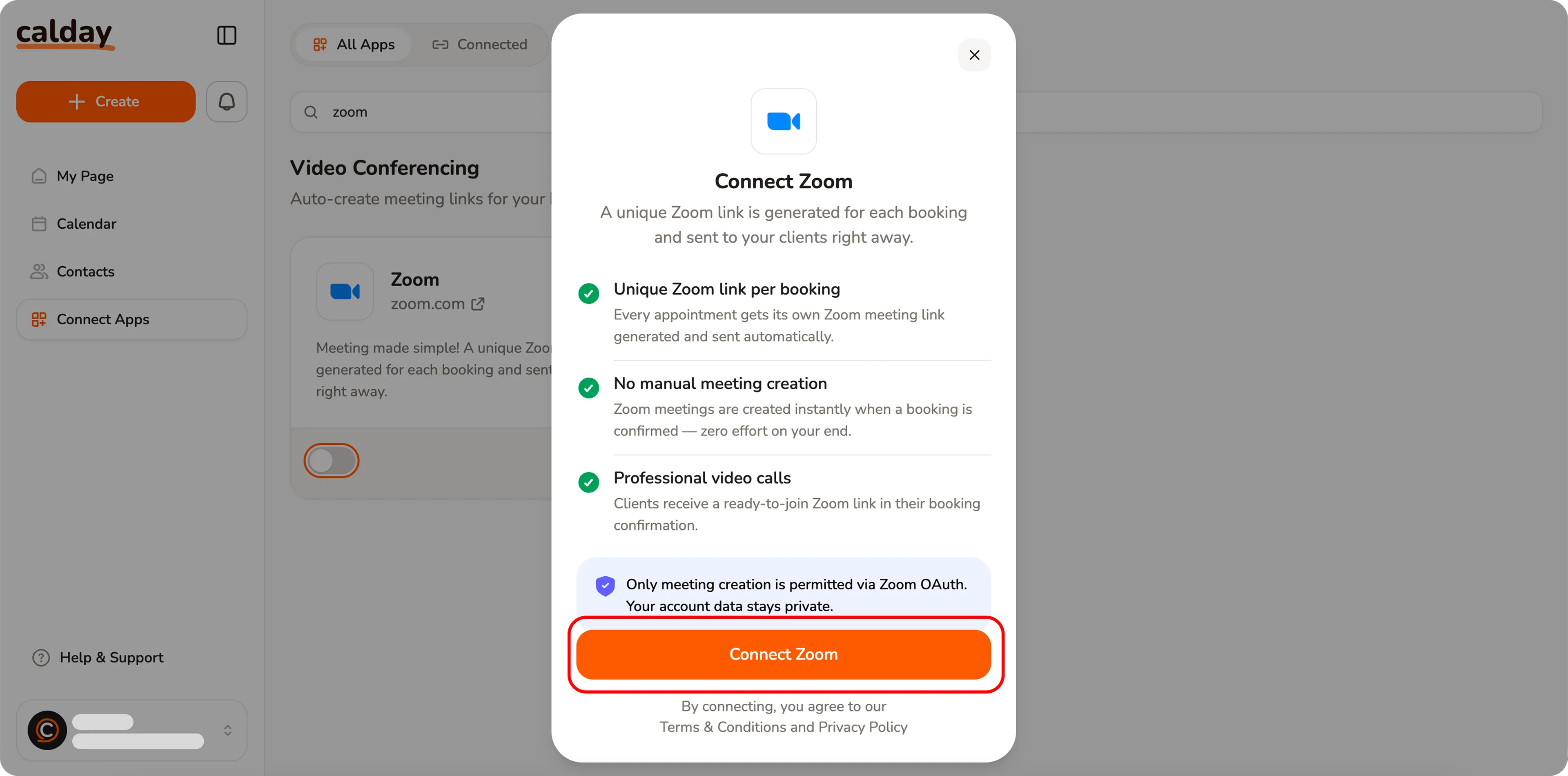
Click on "connect zoom" and complete Zoom Auth
Steps:
- Go to Connect Apps from the sidebar
- Find Zoom under Video Conferencing
- Turn on the toggle or click the app card
- In the modal, click Connect Zoom
- Complete Zoom authorization (OAuth)
Result:
Your Zoom account is now linked. Meetings will be created automatically for bookings.
2. Use Zoom in Bookings
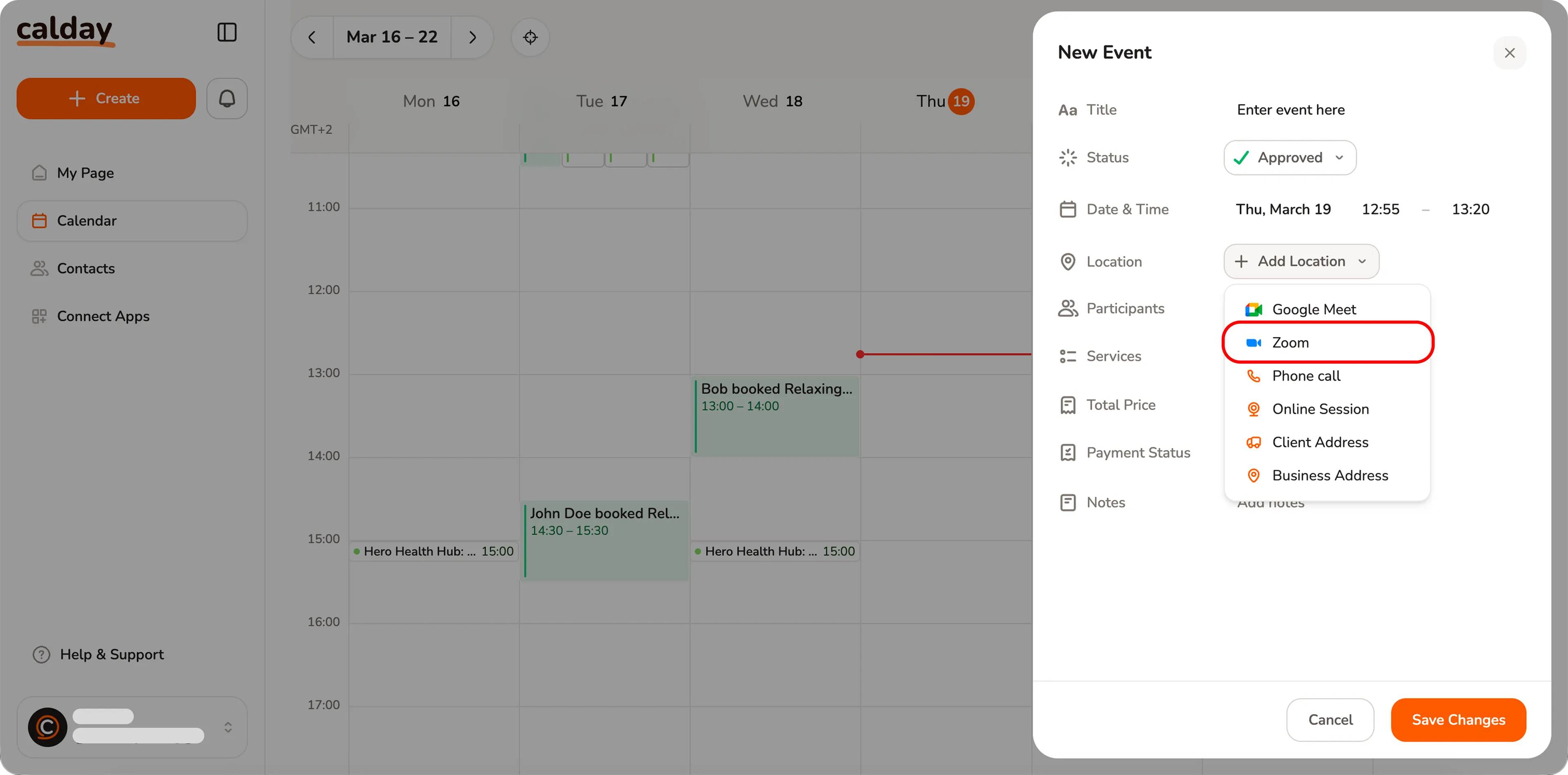
Pick zoom as location in event creation form
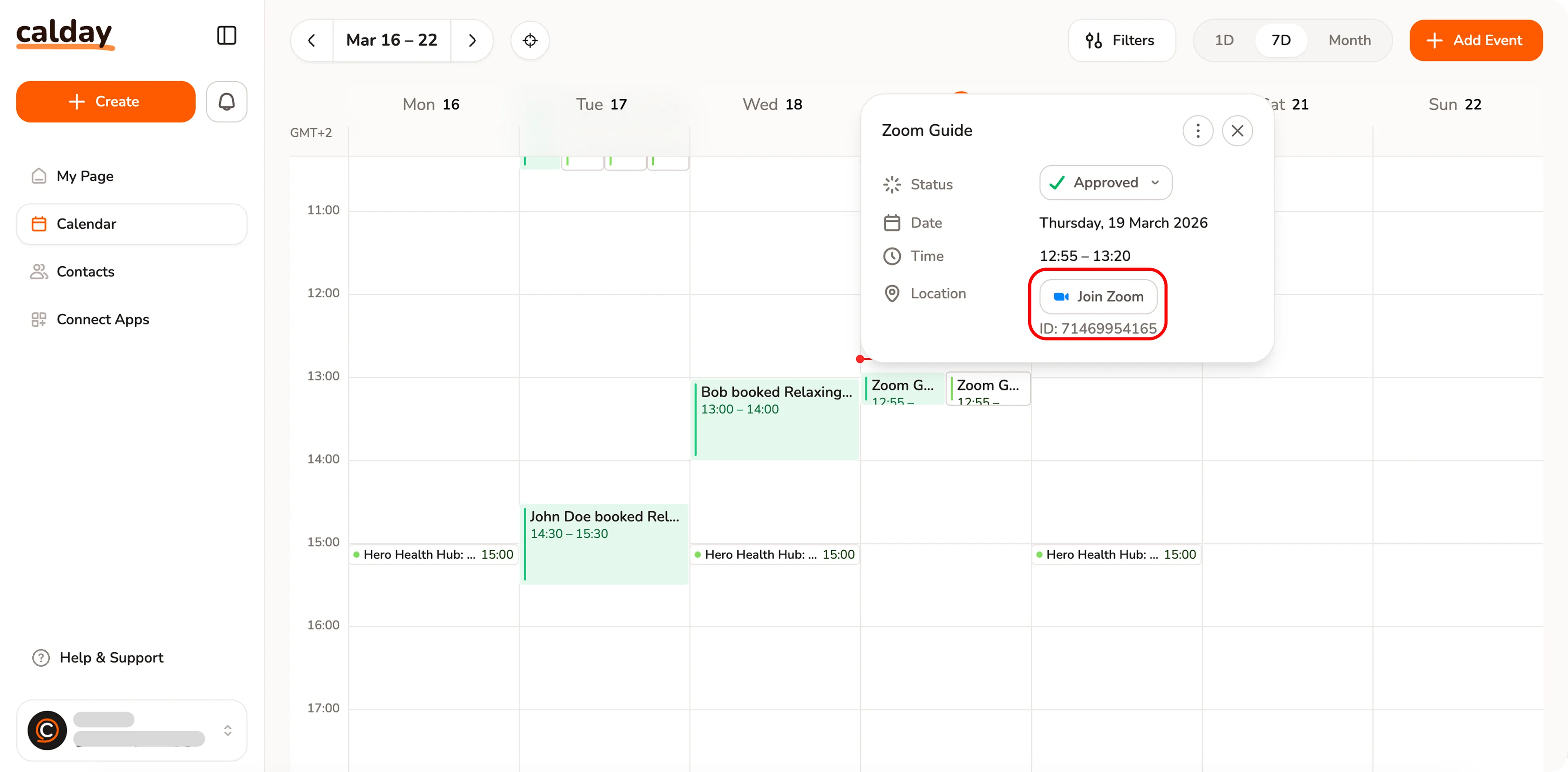
Get you zoom meeting url
How it works:
- Create or edit an event
- In Location, select Zoom
- Save the event
What happens automatically:
- A unique Zoom meeting link is generated
- The link is sent to your client in confirmation
- The meeting appears in your calendar with:
- Join Zoom button
- Meeting ID
No manual setup required.
3. Disconnect Zoom
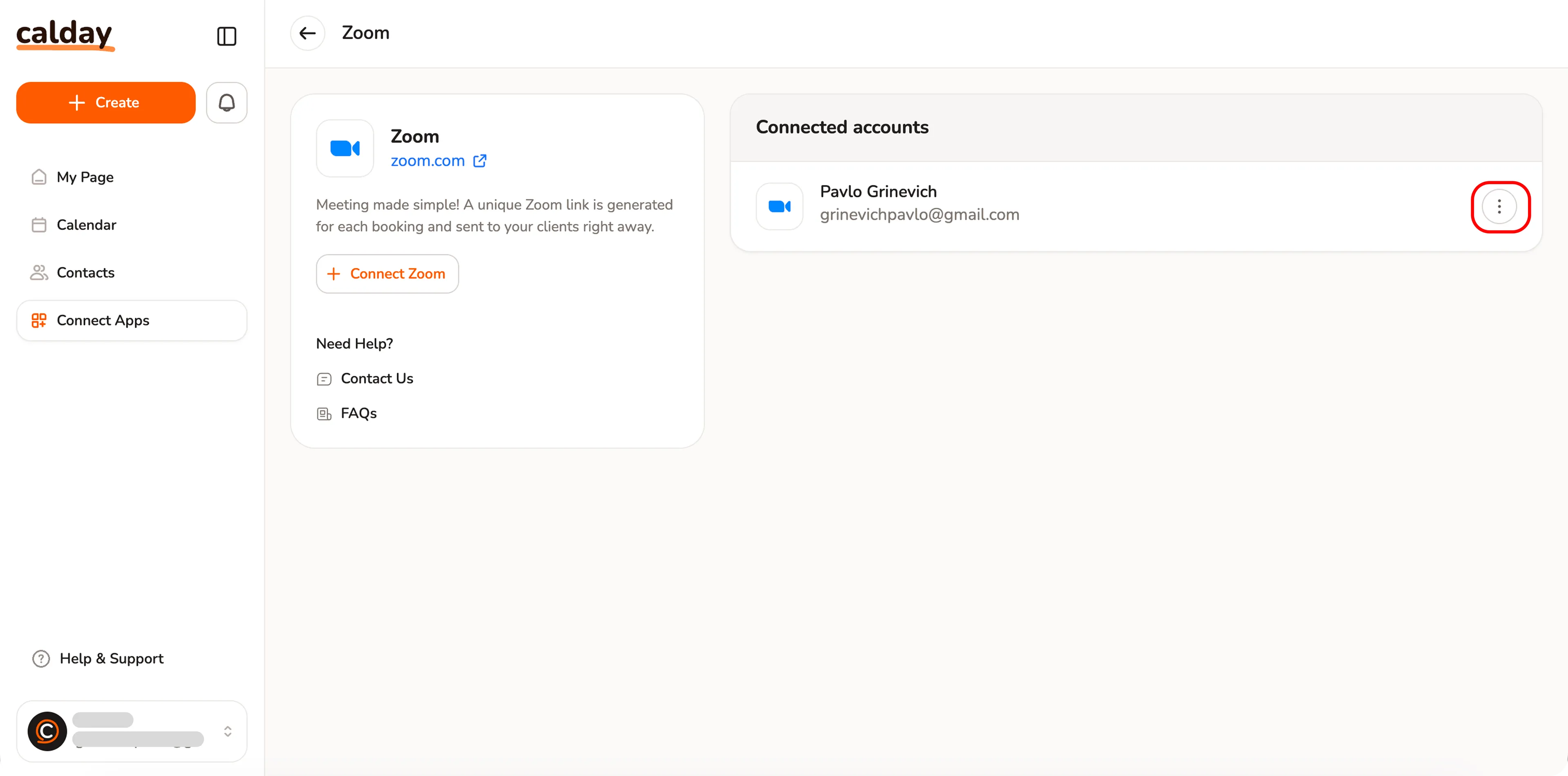
Open Zoom integration settings
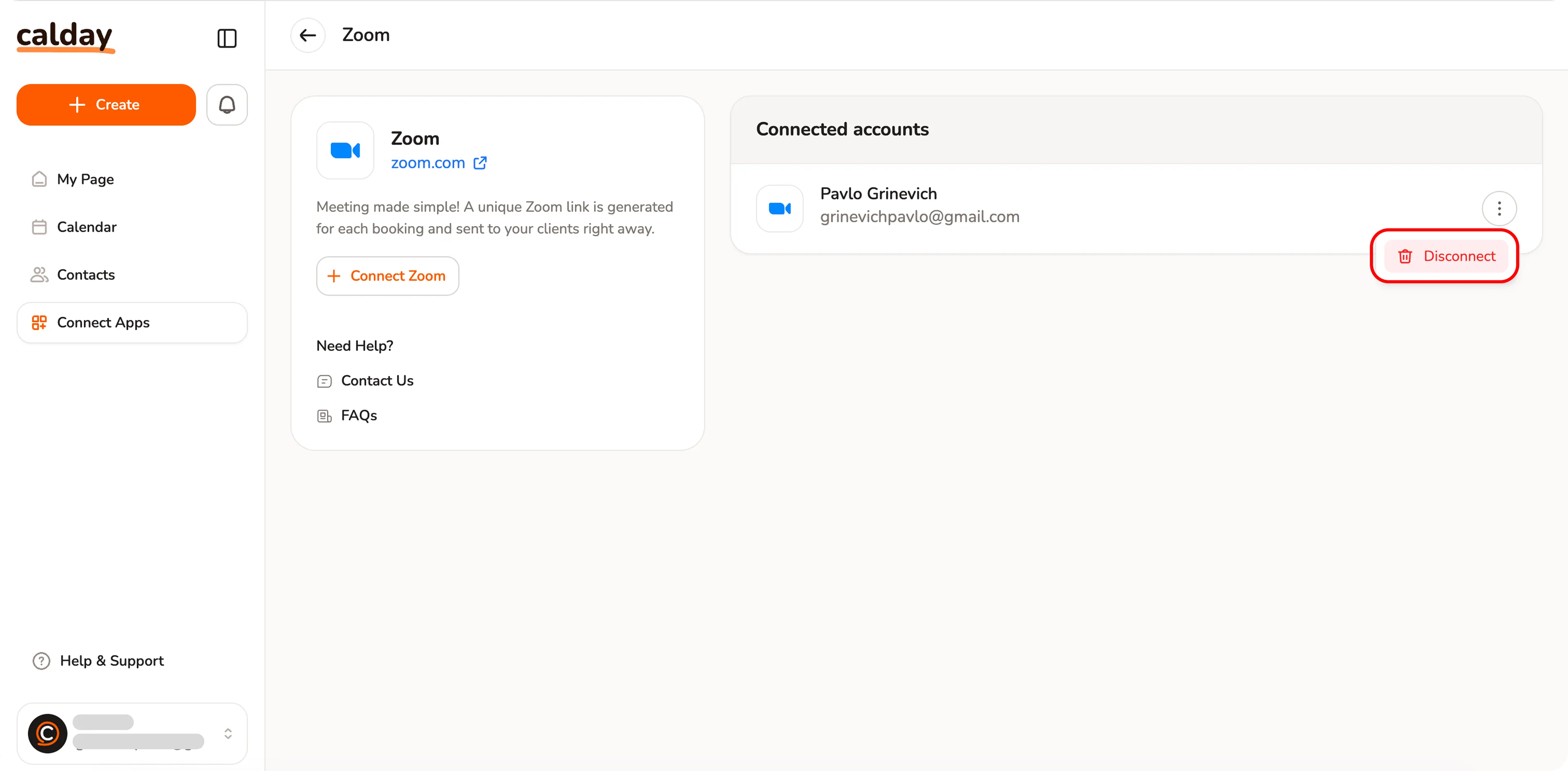
Click on "disconnect" item in dropdown menu
Steps:
- Go to Connect Apps → Zoom
- Open Connected accounts
- Click the ⋮ (menu) next to your account
- Select Disconnect
Result:
Zoom is removed. New bookings will no longer create Zoom meetings.
Key Notes
- Each booking gets its own Zoom link
- Works only after successful connection via OAuth
- Existing meetings remain active even after disconnect
- Reconnect anytime if needed